Lesson content
Read, practise, then check your understanding
Jira began as an issue tracker and evolved into a configurable work-management platform. Teams use it to capture work, make state visible, coordinate delivery, and inspect flow. Jira Software supports Scrum/Kanban; Jira Service Management supports service requests; Confluence documents decisions; Bitbucket connects source delivery.
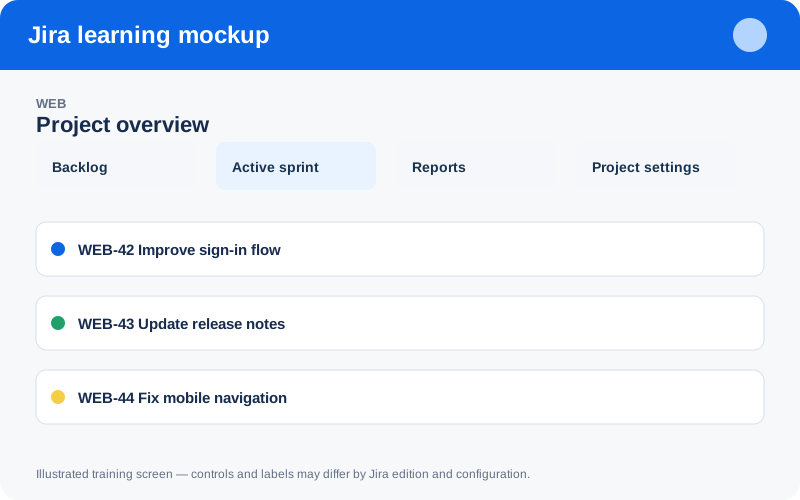
Illustrated training screen. Jira labels and controls can differ between Cloud, Data Center, company-managed, and team-managed projects.
Step-by-step
- Open the Jira product switcher and identify available Atlassian products.
- Locate the project directory and distinguish projects from individual work items.
- Open one project and note its key, lead, template, and navigation.
- Open a work item and identify its key, type, status, assignee, and reporter.
- Follow one link from the item to documentation or development activity.
Worked example
Example: WEB-42 means work item 42 in project WEB. A useful item connects an outcome, owner, status, acceptance evidence, and relevant context; Jira should reflect work, not replace team conversation.
Practice task
Recreate the example in a sandbox project, record what you changed, and explain which team decision the configuration supports. Never experiment with production permissions, workflows, or automation without an approved change plan.
Knowledge check
Answer every question correctly to complete this chapter.
0 of 10 checks passed
Your progress is saved on this device.